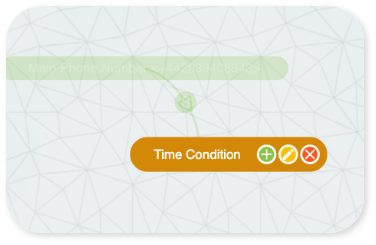
NOTE: To configure your Time Condition click on it and select edit 
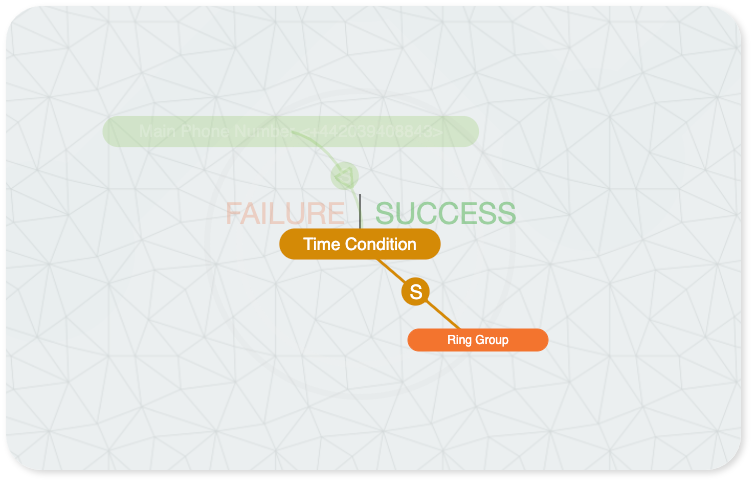
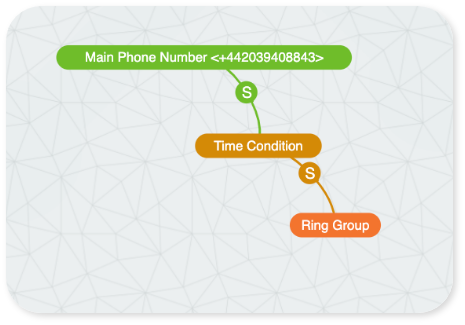
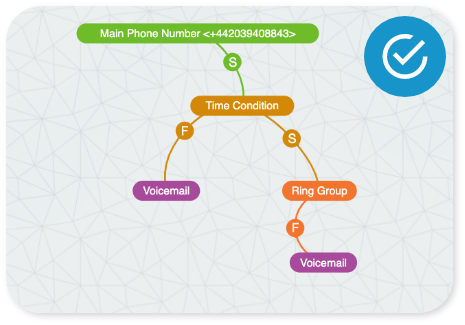
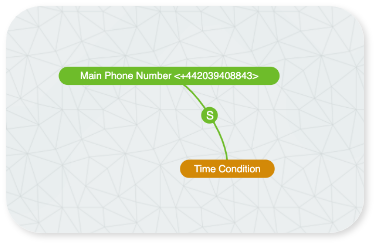
Drag to the right for SUCCESS  .
This means you’re open for business
(i.e Time Condition was successful)
and the call will now proceed
to the ring group.
.
This means you’re open for business
(i.e Time Condition was successful)
and the call will now proceed
to the ring group.
.
This means you’re open for business
(i.e Time Condition was successful)
and the call will now proceed
to the ring group. 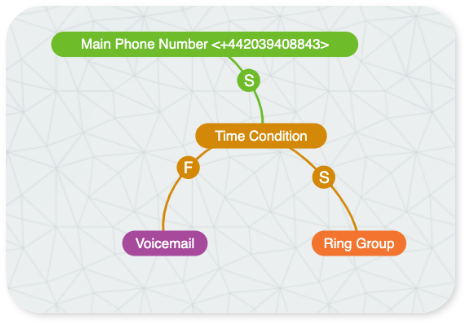
The FAILURE  option should then be a voicemail. (I.e if a caller rings out of hours they can leave a voicemail).
option should then be a voicemail. (I.e if a caller rings out of hours they can leave a voicemail).