STEP

4

Ring Groups

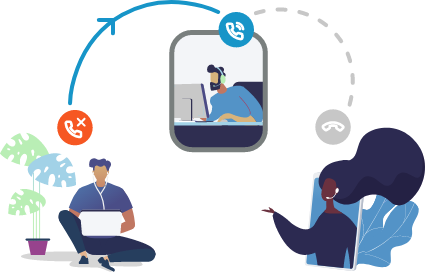
This feature distributes calls from a single phone number to a group of numbers. Not impressed yet? Check this out…

Show me how it’s done

Make sure you have completed step 1-3 if you haven’t you’ll wish you had!

1.

Let’s make it rain ring

To configure a Ring Group click on the Ring Group and hit Edit

Once your in Edit Ring Group Settings we recommend labelling your Ring Group (i.e Reception Ring Group).

2.

What’s your strategy?

Next you need select your Ring Strategy –how the devices in the ring group will ring.

There are 3 options to choose from:

Hunt Hunt rings devices in a sequence. First it will ring device 1, then device 2, then device 3.

Hunt Memory

Hunt Memory will ring device 1, then device 2 whilst continuing to ring device 1 and so on.

Ring All

This will ring every device in the Ring Group at the same time.

3.

The final touches

Refine your Ring Group settings.

Total Ring Time: How long it will call that group before it moves on.

Record Calls: If you wish to record any calls within that group.

Number Prefix: What appears on the handset when a call reaches that group (i.e Sales).

Ring Music: Gives you the option to put promotional audio on certain ring groups.

2.

Choose the devices your users will receive calls on

Click Add Device then you have 2 options:

(Remember when configuring your ring group you are adding devices, not users.)

1. Search for the device

Simply type the user’s name into the Search Identities box and click Add.

2. Add an external device

Toggle on External, label your device, type in the number and click Add. This is an easy way to add a mobile device to the system.

NOTE: Call Confirmation means whenever a users picks up the mobile call, it will tell them it’s a call from their phone system and they can decide whether they want to accept it or not.

For more advice on configuring a ring group please follow the link:
https://byphone.atlassian.net/wiki/spaces/BYP/pages/33636/Create+Ring+Groups