Feature Code Admin
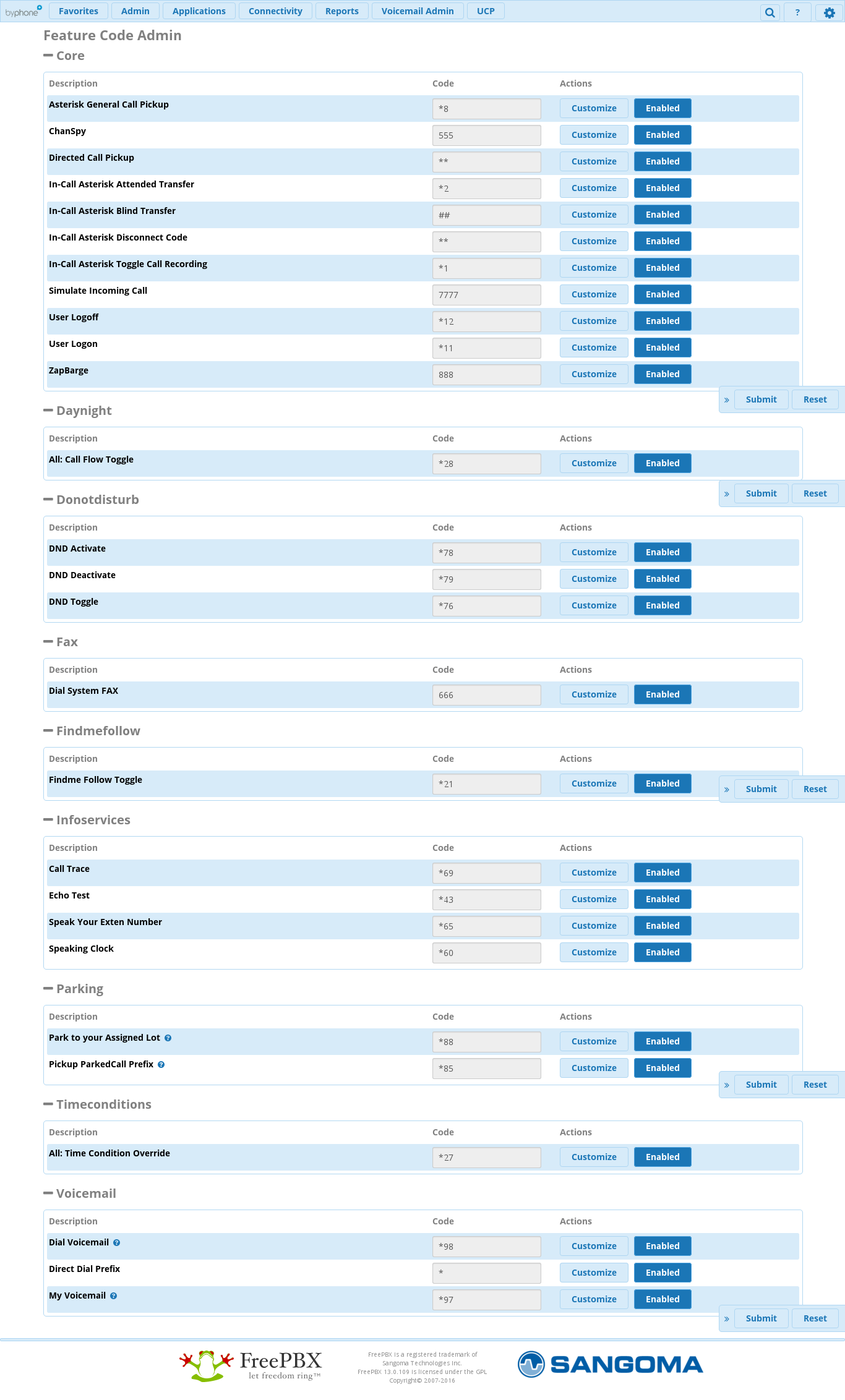
The Feature Code module is where you can view all the feature codes that are built into your PBX. You can perform the following actions for each feature code:
Change a feature code number, Enable or disable the feature code.
There is a table containing the most commonly used feature codes at the bottom of this page!
Logging in
On the top menu click Admin, In the drop down click Feature Codes.
Customizing a Feature Code - You can customize a feature code by setting it to something different from the system default.
Select the Customize button. The button's color will change to dark blue. The background of the Code field will change to white, indicating that you can now edit it.
Enter the code you wish to use in the Code field.
!Be sure the new feature code is not a duplicate of a code used elsewhere already. (The system will not warn you of duplicates.) Also, the feature code should be absolutely unique. Using *12 and *123 may cause an issue in some versions.
Click the Submit button followed by the red Apply Config button.
Restoring a Feature Code to the System Default - It is easy to change a customized feature code back to its system default, and you do not have to remember what the original default was. The system will take care of it for you when you de-select the Customize option. Your feature code is in a customized state if the Customize button is dark blue and the Code field has a white background and is editable.
To restore the default, simply click the Customize button again. It will change to light blue, the Code field will revert back to the default, and the field will not be editable.
Click on the Submit Information button at the bottom right of the page.
Click on the Apply Config button at the top right of the page.
Enabling or Disabling a Feature Code - In the event that you would like to completely disable a feature code from being used, you can toggle the Enable/Disable option for it. To disable a feature code, click the Enable button to turn it to light blue in color, then click the Submit button followed by the red Apply Config button. To enable a feature code, click the Enable button to turn it to dark blue in color, then click the Submit button followed by the red Apply Config button.
Remember, the Enabled button shows whether you have selected an Enabled or Disabled state, but the settings aren't applied until you click Submit and Apply config. Also, remember dark blue=enabled and light blue=disabled.
The following feature codes are the most commonly used
Feature Name | Service Code |
Call Transfer Attended (Allows you to inform destination before passing the call) | *2(n) |
Call Transfer Unattended (Allows you to transfer call without informing destination) | ##(n) |
Park Call (Allows you to park a call for colleagues) | 70 (system gives a parking lot number) |
Retrieve Parked Call with parking lot number | 71-77 |
Voicemail (Access own voicemail) | *97 - Password |
Voicemail (Access another voicemail) | *98(n) - Password |
Voicemail (Dial in from outside, once you hear initial greeting) | *98(n) - Password |
Call Pickup (Allows you to intercept a ringing call on another phone) | *8 |
DND (Do Not Disturb) Activate | *78 |
DND (Do Not Disturb) Deactivate | *79 |
DND (Do Not Disturb) Toggle (Allows toggle between Activate and Deactivate) | *76 |